
Invisible Ink on iPhone: How to Send Hidden iMessages (iOS 26 Guide)
Invisible Ink is a built-in iMessage effect that blurs your message until the receiver taps it. Apple added it in iOS 10 back in 2016, and it still works perfectly on every current iPhone including iOS 26. Whether you want to hide a surprise, a spoiler, or just make a conversation more interesting — this guide covers everything: how to send it on iPhone and iPad, how it works on iOS 26, how to troubleshoot it, and how blank Unicode characters differ from the Invisible Ink effect.
If you just need a blank character to copy and paste into iMessage right now, use the tool below. Or keep reading for the complete guide.
Copy and Paste a Blank Character for iPhone
Tap any button below to copy an invisible Unicode character, then paste it directly into iMessage or any other app on your iPhone.
Invisible Message Generator for iPhone
[ ]Note: Preview markers are not copied. Zero-width characters remain invisible after pasting.
Quick Blank Generator
Hangul Filler (U+3164) ⭐ — most universal invisible character, works everywhere: Instagram bio, TikTok name, Discord, WhatsApp, empty messages
Blank Text Generator — Build Custom Strings
Works for Instagram, TikTok, Discord, WhatsApp, Facebook, Snapchat etc.
See the result in real time
Zero-Width Invisible Characters
Hangul Filler ⭐
U+3164 • Hangul Filler ⭐
Braille Blank
U+2800 • Braille Blank (visible width)
Zero-width space
U+200B • invisible
Zero-width Non-Joiner
U+200C • invisible
Zero-width Joiner
U+200D • invisible
Zero-width no-break
U+FEFF • invisible
Visible Common Whitespaces
Narrow • THIN SPACE
U+2009
Ultra-narrow • HAIR SPACE
U+200A
Regular • SPACE
U+0020 (regular space)
Non-breaking • NBSP
U+00A0
Wide • EN SPACE
U+2002
Extra-wide • EM SPACE
U+2003
Ultra-wide • IDEOGRAPHIC
U+3000
What Is Invisible Ink on iPhone?
Invisible Ink is one of the bubble effects built into Apple's iMessage app. When you apply it, your message gets covered in a shimmering pixelated blur before it is sent. The receiver sees that blurred bubble in their chat and has to tap or swipe it to read what you wrote. A few seconds after they reveal it, the blur comes back automatically.
It works for text, photos, and videos — anything you can normally send over iMessage. The key requirement is that both sides are using iMessage, meaning the chat bubble must be blue, not green. If your message goes out as a green SMS bubble, the blur effect will not reach the other person.
Apple introduced Invisible Ink in iOS 10 (2016) and it has been available on every iPhone and iPad since then — including the latest iOS 26 release. The feature has not changed in how it works, only the surrounding Messages UI has been updated over the years.
This is completely different from invisible text characters. Invisible Ink is a visual animation layer that hides existing text. Invisible Unicode characters are actual hidden symbols that make a message look blank — no text is written, just characters the eye cannot see.
How to Send Invisible Ink on iPhone
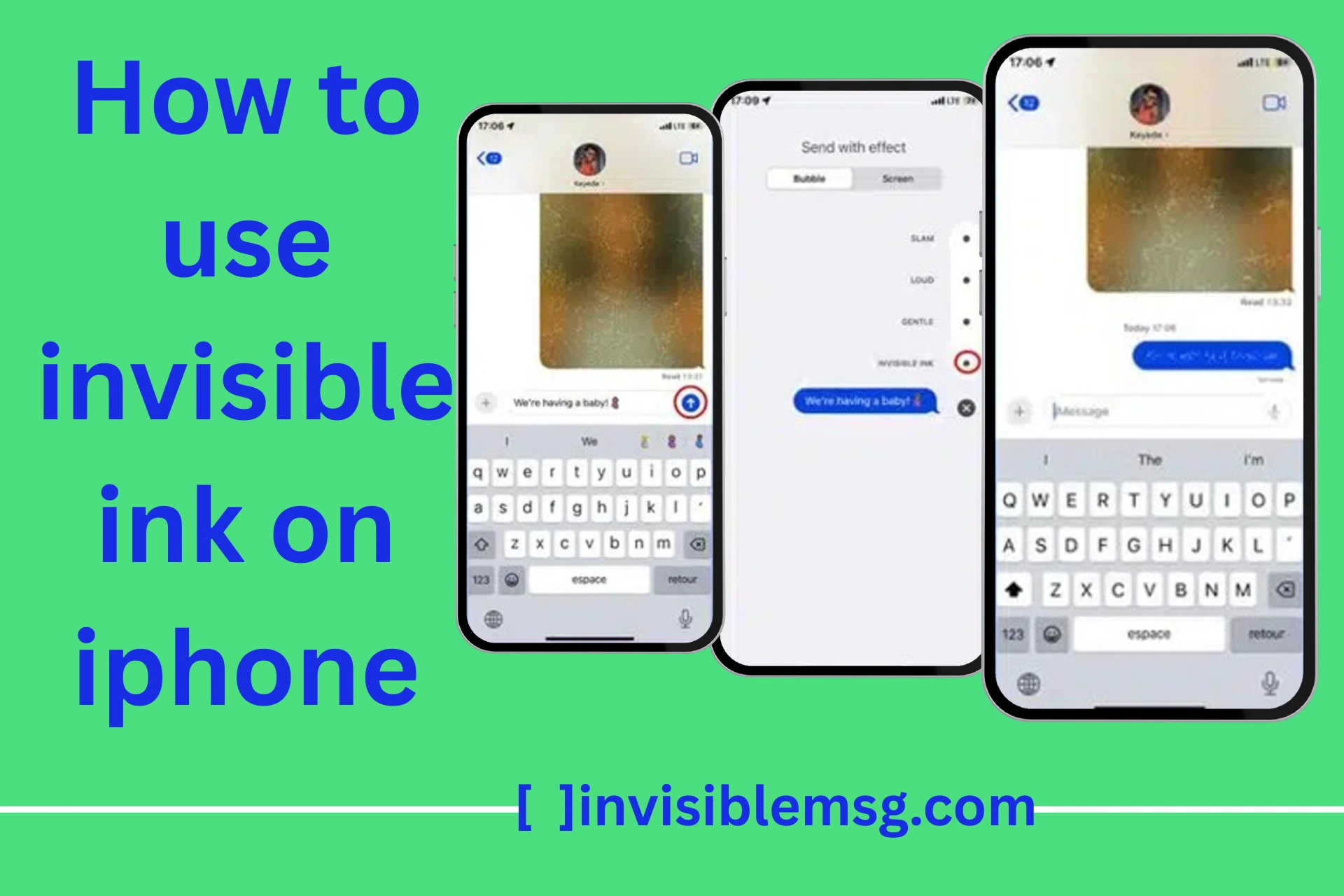
The steps are quick once you know where to look. The trick is to hold the send button instead of tapping it. That single action opens the Send with Effect menu, which is where Invisible Ink lives. This process is the same on all iPhones running iOS 10 or later, including iOS 26.
Step-by-Step Guide
- 1Open the Messages app and start or open any iMessage conversation.
- 2Type the text you want to hide (or attach a photo or video).
- 3Press and hold the blue send arrow — do not just tap it.
- 4The "Send with Effect" screen opens. Make sure you are on the Bubble tab at the top.
- 5Swipe or scroll the effects until you see Invisible Ink, then tap it.
- 6A preview of the blurred message will appear. Tap the blue arrow to send.
- 7Done — the receiver sees a sparkling blur until they tap it.
How the Reveal Works on the Receiver's Side
The receiver sees a blurred, shimmering bubble arrive in their chat. When they tap or swipe it, the pixels clear and the message becomes readable for a few seconds. After that, the blur automatically comes back. They can tap it again any time to re-read it.
The message is never deleted. It is always there — just hidden behind the animation. The receiver can take a screenshot at any point, so do not use Invisible Ink for anything genuinely sensitive.
Common uses: birthday wishes, party announcements, surprise plans, spoiler warnings, and just making a boring text conversation feel more interesting.
Can You React to an Invisible Ink Message Without Revealing It?
Yes — this is one of the less obvious details about how the effect behaves. Double-tapping (or long-pressing, depending on iOS version) a blurred Invisible Ink bubble to add a Tapback — a heart, thumbs up, laugh, or any of the standard reactions — works exactly the same as it would on a normal message, without tapping to reveal the text first.
This means you can react to a message you haven't actually read yet, which comes up more than it sounds like it would: someone sends a blurred surprise, and out of habit the recipient taps a reaction before swiping to reveal what's underneath. The reaction attaches to the message bubble itself, not to its content, so the system doesn't need the blur removed first to register it.
Worth knowing for the sender: seeing a reaction appear on your Invisible Ink message doesn't confirm the other person has actually revealed and read it — only that they've interacted with the bubble. If knowing whether the message was actually opened matters, that's a separate signal from the Tapback.
How Invisible Ink Behaves With VoiceOver
The troubleshooting section above covers Reduce Motion, but a separate accessibility setting — VoiceOver, Apple's built-in screen reader — interacts with Invisible Ink in a way worth explaining on its own, since it doesn't follow the same "blurred until tapped" logic sighted users experience.
With VoiceOver running, a message sent with Invisible Ink is generally announced as a message effect is present, without narrating the actual hidden text automatically — the visual blur has an audio equivalent in the sense that the content still requires a deliberate action (typically a double-tap on the focused bubble) before VoiceOver reads it aloud. This preserves the surprise/reveal intent of the effect for VoiceOver users rather than bypassing it.
One practical implication: if you're sending an Invisible Ink message to someone you know uses VoiceOver, the interaction still requires the same deliberate reveal step — it isn't skipped or auto-read just because a screen reader is active. The effect's core behavior (hidden until intentionally revealed) is preserved across both visual and audio-based access to the conversation.
Does Invisible Ink Survive Backup, Restore & Messages in iCloud?
If you've got Messages in iCloud turned on (Settings → your name → iCloud → Messages), conversations sync across your iPhone, iPad, and Mac rather than living solely on one device. An Invisible Ink message syncs as part of that conversation history — the effect metadata travels along with the message, so the bubble still appears blurred with the shimmer animation on every device signed into the same iCloud account, not just the one it arrived on.
Restoring from an iCloud or local backup onto a new or reset iPhone behaves the same way — message effects are stored as part of the message data Apple backs up, so an Invisible Ink message you sent or received months ago still shows the blur after a restore, rather than reverting to plain text.
Where this can look inconsistent: if Messages in iCloud is turned off and you're instead relying on a local device backup restored onto a different device, older conversations may not carry over at all depending on how the backup was structured — in that case the missing blur is really a missing message, not the effect failing to transfer on its own.
Does Invisible Ink Work on iOS 26?
Yes. Invisible Ink works on iOS 26 exactly the same way it has worked since iOS 10. Apple did not change the core iMessage effects system in iOS 26, so the feature is fully available. The steps — press and hold the send button, select the Bubble tab, choose Invisible Ink — remain unchanged.
iOS 26 introduced visual design changes to the Messages app interface, but the Send with Effect screen itself is functionally identical. If you have just updated and the effect seems missing, the most likely cause is Reduce Motion being enabled, not a change in iOS 26. Check Settings → Accessibility → Motion → Reduce Motion and make sure it is turned off.
iOS Compatibility at a Glance
Invisible Ink on iPad and Mac
📱 iPad
Invisible Ink works on iPad identically to iPhone. The process is the same: open Messages, type your text, press and hold the blue send button, tap the Bubble tab, and select Invisible Ink.
The iPad version of Messages shows a larger preview of the blur effect before you send, which makes it easier to confirm the effect is applied. Both parties must still be on iMessage — the blue bubble requirement applies to iPad just as it does on iPhone.
💻 Mac
The Messages app on macOS supports Invisible Ink for iMessage conversations. To apply it on Mac: type your message, then right-click (or Control-click) the send button. A context menu will appear with effect options including Invisible Ink.
On Mac, the effect renders correctly and the receiver sees the same blurred bubble. Reducing Motion on macOS (System Settings → Accessibility → Display → Reduce Motion) will also disable Invisible Ink animations, same as on iOS.
Can You Send a Blank Message on iPhone?
Yes — but not with the space bar. If you press space and try to send, iMessage strips the whitespace and refuses to send because there is no valid character. The send button stays grayed out.
The way around this is to use a zero-width Unicode character. These are real characters in the Unicode standard — things like the Zero Width Space (U+200B) or the Hangul Filler (U+3164). They take up no visual space, so the message bubble looks completely empty to whoever receives it. But iMessage sees a valid character and sends it without any issue.
Use the copy tool at the top of this page to grab one of those characters, paste it into iMessage, and send. The receiver will see an empty white bubble — no text, no emoji, nothing visible.
// How iMessage processes it:
Spacebar only → whitespace stripped → Send button: GRAYED OUT
Empty field → 0 chars → Send button: GRAYED OUT
U+3164 char → 1 valid char → Send button: ACTIVE ✓ → receiver sees: [ ]
Blank Message iPhone Copy and Paste (2026)
The fastest way to send an empty-looking message on iPhone is the copy-and-paste method. You copy one invisible Unicode character, switch to iMessage, paste it in the text field, and hit send. The entire process takes about five seconds.
You do not need a special app or a jailbreak. Any iPhone running iOS 10 or later — including iOS 26 — can send blank Unicode messages in iMessage, WhatsApp, Instagram DMs, or almost any other messaging app. Some apps like Discord strip certain zero-width characters automatically, so test it first if you are not using iMessage.
Where You Can Paste Invisible Characters on iPhone
Blank Unicode characters work well beyond just iMessage. Here are the most common places iPhone users paste them:
- iMessage and SMS chat fields
- Instagram bio and DMs
- WhatsApp messages and status
- Notes app (for spacing or blank line formatting)
- Game usernames on platforms that allow Unicode
- Twitter and Threads bio fields
- TikTok profile bio
Tip: Every platform handles these characters differently. Always paste and preview before posting publicly.
Invisible Ink vs Blank Text — What Is the Difference?
These two things get mixed up constantly, but they work in completely different ways. Here is a clear side-by-side comparison:
Invisible Ink Effect
A built-in iMessage animation. You write normal text and apply a blur before sending. The message exists and is readable — it is just hidden behind a shimmering pixel layer that the receiver swipes away.
- iMessage only (blue bubbles)
- Works on iOS 10 and later, including iOS 26
- Text is hidden, not deleted
- Receiver taps to reveal; blur returns after a few seconds
- Also works with photos and videos
- Works on iPhone, iPad, and Mac
Blank Unicode Text
An invisible character copied from a Unicode tool and pasted into a message. The bubble looks completely empty — no text at all. There is no reveal effect. The receiver just sees a blank chat bubble.
- Works in iMessage, WhatsApp, Instagram, and more
- No special iOS version needed
- Message looks permanently empty
- Nothing to tap or reveal
- Some apps remove these characters automatically
- Works on iPhone, Android, and desktop browsers
What Does an Empty Message Mean on iPhone?
Getting an empty bubble from someone can mean one of two things. Either they intentionally sent a blank message using an invisible Unicode character — as a prank, a creative move, or just to see your reaction — or it is a technical glitch.
On the technical side, empty-looking messages can appear when iMessage fails to download the content properly. This can happen with slow data, a sync issue after restoring from a backup, or an iOS bug. In those cases, the bubble is not really blank — the message just did not load. Restarting the Messages app or checking your connection usually fixes it.
If the message downloads fine but still looks empty, it almost certainly contains an invisible Unicode character. You can use our invisible character detector to paste the message and check what characters it actually contains.
Why Is Invisible Ink Not Working on iPhone?
If the effect is not appearing or the receiver is seeing plain text, one of these reasons is almost always the cause. Applies to all iOS versions including iOS 26.
Reduce Motion Is Turned On
This is the most common reason. When Reduce Motion is on, iOS disables certain animations including Invisible Ink. Fix: Settings → Accessibility → Motion → turn off Reduce Motion. Try sending again after that.
Message Is Sending as SMS (Green Bubble)
Invisible Ink only works over iMessage. If your bubble is green, you are sending a standard SMS and the effect will not carry through. Check that iMessage is enabled in Settings → Messages and that you have a data connection.
Receiver Is Not on iMessage
If the person uses Android, or has iMessage turned off, they receive plain SMS with no blur. There is no workaround — Invisible Ink requires iMessage on both ends.
Outdated iOS Version
Invisible Ink requires iOS 10 or later. If either phone is running an old version, the feature may behave unexpectedly. Settings → General → Software Update and install any available updates.
Quick Checklist Before Trying Again
- ✓Reduce Motion is OFF in Settings → Accessibility → Motion.
- ✓iMessage is enabled in Settings → Messages.
- ✓The message bubble is blue, not green.
- ✓You are texting an iPhone or iPad user with iMessage active.
- ✓Both devices are on iOS 10 or later.
- ✓You have an active data or Wi-Fi connection.
Tips for Using Invisible Messages on iPhone
- ›Build suspense, not confusion — Invisible Ink works best when the receiver knows something is coming. Sending a blurred message out of nowhere can just look like a glitch. Pair it with a context message first.
- ›Screenshots defeat the purpose — The receiver can screenshot a revealed Invisible Ink message at any point. Never use this feature to send genuinely private or sensitive information.
- ›Combine with Screen effects — You can layer a full-screen animation (Confetti, Fireworks, Lasers) over your Invisible Ink message. Switch to the Screen tab in the Send with Effect menu before tapping send.
- ›Test blank characters first — Paste the invisible character into Notes first to confirm it worked. Some copy-paste flows on iPhone accidentally strip the character before you send.
- ›Do not spam blank messages — One or two empty bubbles can be funny. Twenty in a row will get you muted. Keep it minimal.
- ›Works in group iMessage chats — You can send an Invisible Ink message to a group iMessage conversation. Everyone in the group has to tap the bubble individually to reveal the text.
Frequently Asked Questions
Common questions about Invisible Ink on iPhone, blank text messages, iOS 26 compatibility, and troubleshooting iMessage effects.
Does Invisible Ink work on iOS 26?
▼
Yes. Invisible Ink works on iOS 26 exactly the same as previous versions. Press and hold the send arrow, open the Bubble tab, and select Invisible Ink. If it is not showing, turn off Reduce Motion in Settings → Accessibility → Motion.
Does Invisible Ink work on Android?
▼
No. Invisible Ink is an iMessage-only effect. Android users receive the message as a plain SMS with no blur — the effect is completely lost on non-Apple devices.
Does Invisible Ink work on iPad?
▼
Yes. The steps on iPad are identical to iPhone. Open Messages, press and hold the send button, select the Bubble tab, and choose Invisible Ink. Both devices must be using iMessage (blue bubbles).
Why is Invisible Ink not showing on my iPhone?
▼
The most common reason is Reduce Motion being turned on. Go to Settings → Accessibility → Motion → turn off Reduce Motion. Also confirm your message bubble is blue (iMessage), not green (SMS).
Can you send a blank message on iPhone?
▼
Yes — but not with the space bar. Copy a zero-width Unicode character from the tool on this page, paste it into iMessage, and send. The system reads it as valid text so the message goes through, but the receiver sees a completely empty bubble.
Does Invisible Ink work on Mac?
▼
Yes. The Messages app on macOS supports Invisible Ink. Right-click or Control-click the send button to access the effect menu including Invisible Ink.
Can you undo Invisible Ink after sending?
▼
No. Once a message is sent with Invisible Ink, the effect cannot be removed or changed. The receiver can still tap to reveal and screenshot the text.
Can the receiver screenshot an Invisible Ink message?
▼
Yes. Once the receiver taps to reveal the message, they can take a screenshot. Invisible Ink is a visual effect, not a privacy feature. Never use it for sensitive information.
Safe and Responsible Use
Invisible Ink is a fun addition to everyday texting, not a security tool. The message itself is not encrypted or protected in any way beyond the visual blur. The receiver can read it, screenshot it, and share it just like any normal iMessage.
Blank Unicode characters are equally harmless when used sensibly. The main thing to avoid is using invisible characters to bypass platform rules — some apps specifically scan for and remove zero-width characters.
Use these tools for what they are designed for: fun messages, creative chat formatting, surprises, and testing how different platforms handle Unicode text.
Key Takeaways
- ·Invisible Ink is a blur effect built into iMessage. Text is hidden until tapped. Works on iOS 26, iPad, and Mac.
- ·Blank text uses Unicode characters that look empty. No reveal effect — just an invisible character the system reads as valid.
- ·Main fix: if Invisible Ink does not work, turn off Reduce Motion and confirm the bubble is blue, not green.
- ·Cross-platform: blank Unicode characters also work in WhatsApp, Instagram, and gaming usernames — though not every app supports all types.
- ·Not private: neither Invisible Ink nor blank characters hide content from screenshots or screen recordings.